
Supported Browsers Overview


Version 15 and above |

Version 90 and above |

Version 90 and above |

Version 90 and above |
Version 1.57 and above |

Version 90 and above |
How to Use
Installation: Navigate to Marketing > File & Templates > Design Tools > @marketplace > Shunyavkash folder to find the Flexible Faqs Module. Install it.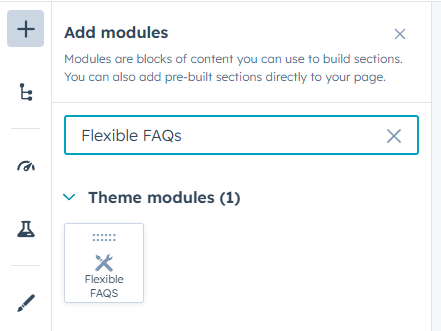
Integration: In the Marketing section, choose Website Menu > Website Pages and add the "Flexible Faqs Module" module to the page you want.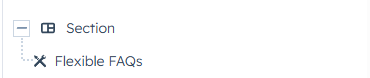
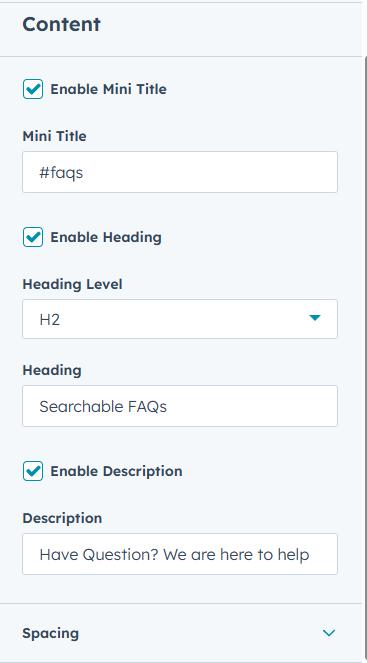
Content Customization
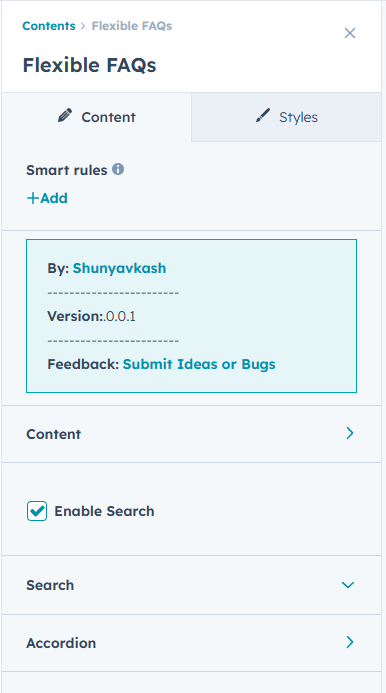
Header Section
Mini Title
- Enable or disable a small caption text that appears above the main heading.
- Perfect for category labels or section identifiers.
- Customizable text content.
Main Heading
- Toggle the main heading on or off.
- Choose from heading levels: H2, H3, H4, H5, or H6 for proper SEO hierarchy.
- Enter your custom heading text
Description
- Enable or disable a descriptive paragraph below the heading.
- Use this to provide context or introduction to your FAQs.
- Enter your custom Description text.
Search Functionality
Enable Search
- Toggle search bar on or off.
- Allows users to filter FAQs by keywords in real-time.
- Searches through both questions and answers.
Search Placeholder
- Customize the placeholder text shown in the search input field.
- Default suggestion: "Search FAQs..." or "Type to search..."
Search Icon
- Choose between built-in icons or upload a custom icon.
- Supports standard icon libraries and custom image uploads.

FAQ Content
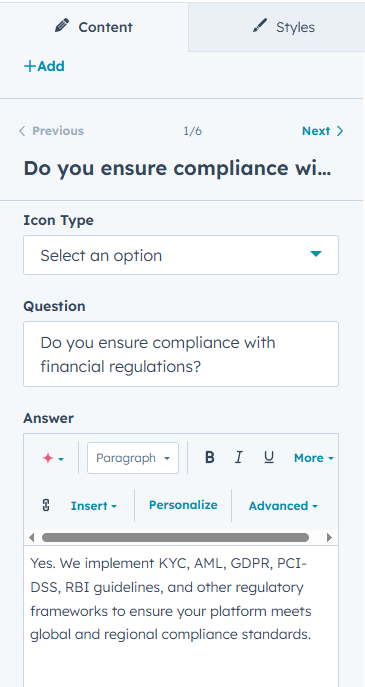
Icon Type
Choose the source of the icon used in the FAQ toggle.
1. HubSpot Icon
Select an icon directly from HubSpot’s built-in icon library.
This option is ideal when you want a simple, lightweight icon that matches your theme styling. Additional styling options such as color, size, and active color can be customized.
2. Custom Image Icon
Light Icon (Default State)
Upload the main icon that will appear when the FAQ item is in its default (closed) state. This is usually a light or neutral version of your icon.
Dark Icon (Active State)
Upload the icon that will appear when the FAQ item is opened.
This is typically a darker, highlighted, or visually distinct version of the icon to indicate the active state.
Why Use Two Images?
Using both light and dark icons provides clear visual feedback for users by showing a different icon when the FAQ is opened.
This creates better usability and improves accessibility, especially in custom-designed interfaces.
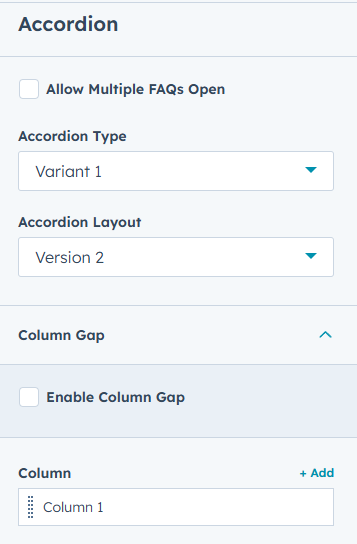
Accordion Type Options
- Only FAQs: Add a single static FAQs column, or create a two-column FAQs layout.
- Image FAQs Layout: Single static image alongside all FAQs.(Not: Remember to only create one column when adding an image.)
- Tab Image Layout: Each FAQ displays a corresponding image when expanded.(Not: Remember to only create one column when adding an image.)
Accordion Layout Options
- Version 1: This is provides a classic FAQs layout.
- Version 2: External button controls for toggling FAQs.
Column Configuration
- Create single or multi-column FAQ layouts.
- Set column gap spacing between FAQ groups.
- Enable maximum width constraints for better readability.
Accordion Items
- Question: Enter the question text.
- Answer: Add detailed answer content with rich text suppor.
- Tab Image (for tab image layout): Upload unique image for each FAQ.
- Default First Open: Option to have the first FAQ expanded by default.
Multiple FAQs Open
- Allow users to expand multiple FAQs simultaneously.
- Or restrict to single FAQ open at a time .(accordion behavior)
Image Settings (for Image FAQ layouts)
Static Image
- Upload a single image to display alongside all FAQs.
Image Position
- Place image on the left or right side of FAQ content.
- Automatically adjusts for responsive views.
Full Height Image
- Enable to make image stretch to full container height
- Maintains aspect ratio while filling available space

Style Customization
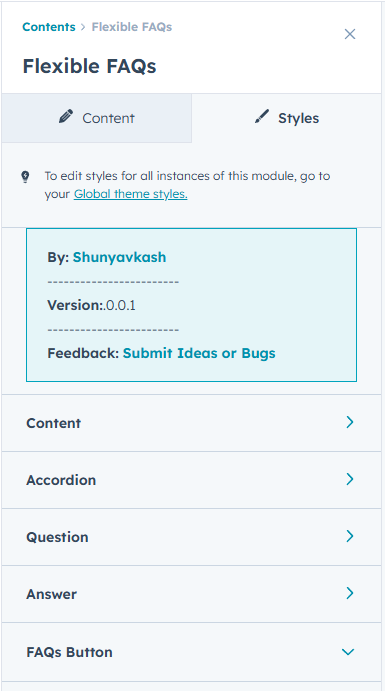
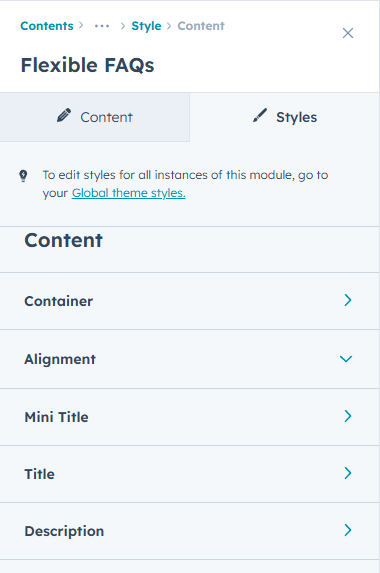
The module includes an extensive range of style settings so you can match the FAQ design with your website branding.
Section Header Styling
Alignment
- Set text alignment for desktop, tablet, and mobile separately
- Options: Left, Center, Right
Container Settings
- Enable maximum width to constrain header content.
- Set custom maximum width in pixels.
- Configure bottom spacing to control gap between section header and FAQs.
Mini Title Typography
- Font family, size, weight, and style
- Custom line height (in 0.1 point).
- Individual spacing control for bottom margin
- Responsive font sizes for desktop, tablet and mobile
Main Heading Typography
- Complete font customization.
- Line height adjustment (in 0.1 point).
- Bottom margin spacing.
- Device-specific typography settings.
Description Typography
- Font styling options.
- Line height control (in 0.1 point).
- Bottom spacing configuration.
- Responsive text sizes.
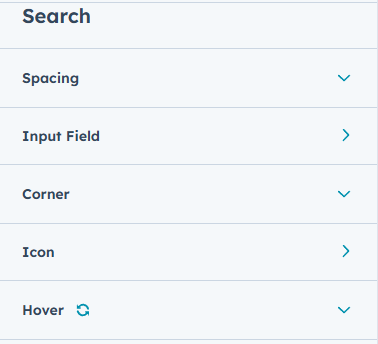
Search Bar Styling
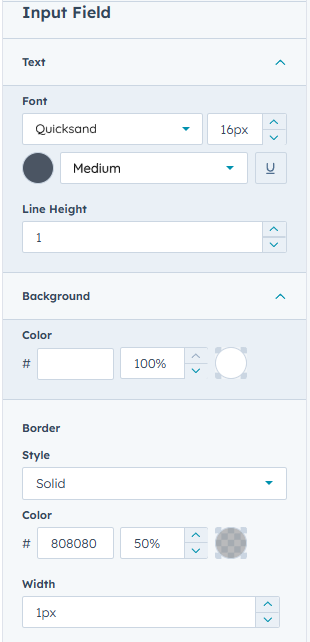
Input Field
- Background color with Hexadecimal support.
- Border styling: width, style, and color.
- Custom border radius for rounded corners.
- Text color and typography.
- Padding adjustments.
- Bottom spacing control.
Hover State
- Custom border color on hover and focus.
- Smooth transition effects included.
Search Icon
- Icon color customization.
- Background color with circular badge.
- Positioned inside input field.
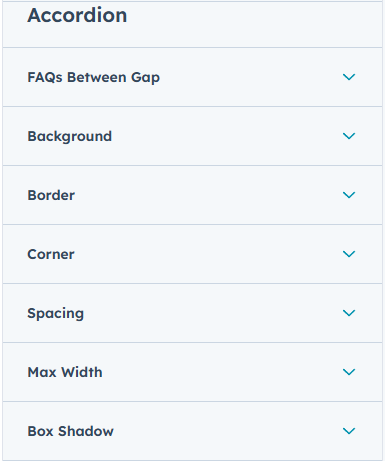
Individual FAQ Item Styling
FAQ Between Gap
- Control vertical spacing between individual FAQ items.
Maximum Width
- Enable width constraint for FAQ container.
- Set custom maximum width in pixels.
- Centers content automatically.
Border
- Full border customization: width, style, color.
- Applies to all sides or individually.
Corner Radius
- Set border radius for rounded corners.
- Enable drop shadow effect.
- Customize horizontal offset, vertical offset, blur, spread.
- Hexadecimal color control for shadow.
Spacing
- Padding control for desktop, tablet, and mobile.
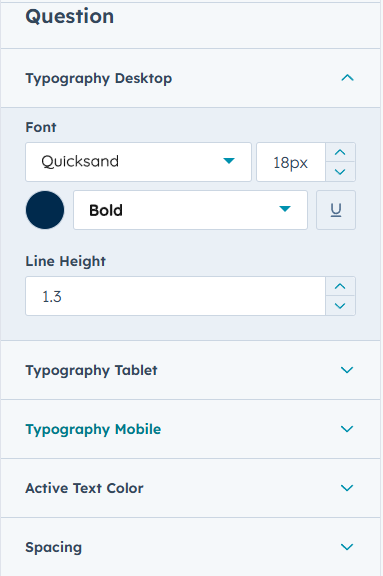
Question Styling
Typography
- Font family, size, weight, style
- Custom line height.
- Responsive sizing for tablet and mobile.
Text Color
- Default question text color.
- Optional active text color when FAQ is expanded.
Spacing
- Padding adjustments for all devices.
- Control space around question text.
Answer Styling
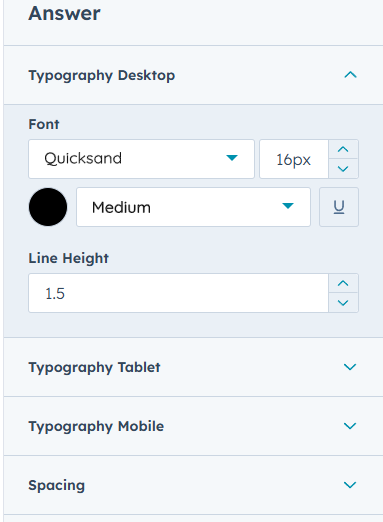
Typography
- Font styling for all answer content
- Line height optimization for readability
- Responsive font sizes
Text Color
- Color inherited from typography settings
- Supports all text elements (paragraphs, lists, etc.)
Spacing
- Padding control for answer content
- Control space around text.
Icon Customization
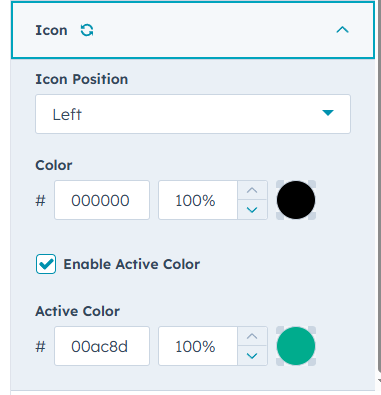
Icon Color
- Default icon color
- Optional active state color when expanded
Icon Position
- Display icon on left or right side of question
FAQ Button (for "With Button" layout)
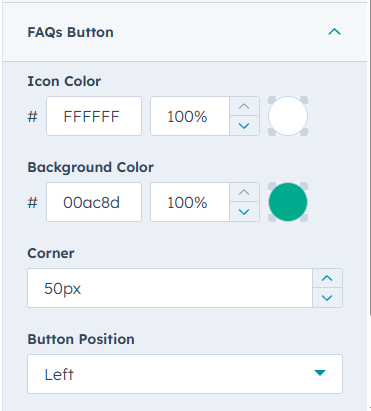
Background Color
- Custom background with Hexadecimal support
Icon Color
- Color for the icon inside the button
Button Position
- Place button on left or right of FAQ content
Corner Radius
- Border radius for button shape
Size
- Responsive button height (adjusts for mobile: 40px, tablet: 50px, desktop: 65px)
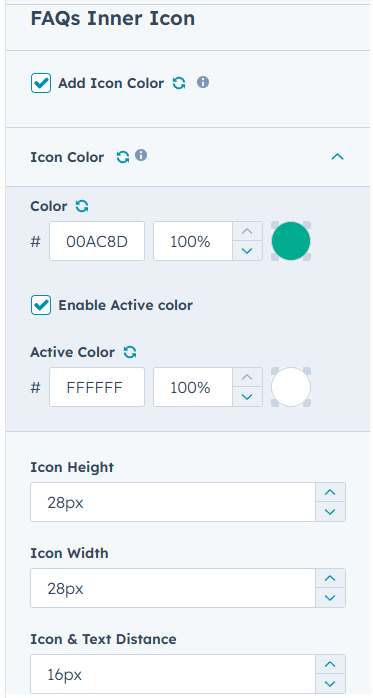
FAQs Inner Icon
-
Icon Color
Choose the default color for the icon in its normal (closed) state. This color will be applied to the HubSpot icon when the FAQ is not active.
-
Enable Active Color
Activate this setting if you want the icon to change color when the FAQ item opens. This helps visually highlight the active or expanded state.
-
Active Color
Select the color that will be applied to the icon when the FAQ item is active. This color replaces the default icon color only during the open state.
-
Icon Height
Set the height of the icon in pixels. Adjust this value to increase or decrease the vertical size of the icon to match your design.
-
Icon Width
Set the width of the icon in pixels. Use this to control the horizontal size of the icon for better visual balance.
-
Icon & Text Distance
Adjust the spacing between the icon and the FAQ title text. Increasing or decreasing this value allows you to control the alignment and breathing space between the two elements.
We’re Not Here to Sell, We’re Here to Solve
Talk with strategic minds and developers, not just salespeople. Whether it’s your website, product, platform, or automation flow, let’s sketch the blueprint together. No fluff. Just meaningful collaboration. We reply same day.
