
Supported Browsers Overview


Version 12 and above |

Version 60 and above |

Version 79 and above |

Version 60 and above |

Version 1.34 and above |

Version 57 and above |
How to Use
Installation: Navigate to Marketing > File & Templates > Design Tools > @marketplace > Shunyavkash folder to find the Flexible Grid Gallery Module. Install it.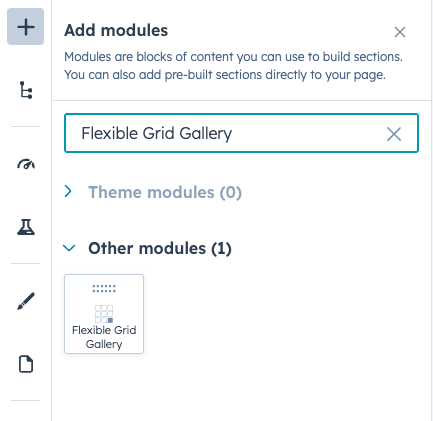
Integration: In the Marketing section, choose Website Menu > Website Pages and add the "Flexible Grid Gallery" module to the page you want.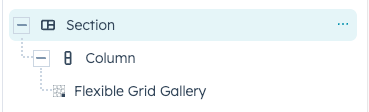
Content Customization
Grid Layout Versions
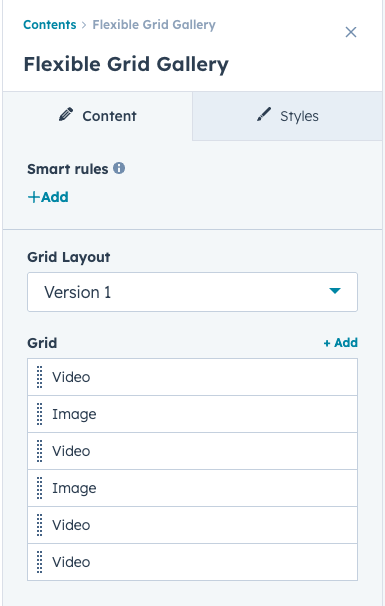
Choose from three distinct layout patterns. Each version has its own independent grid column configuration:
Version 1 - Standard Grid
- Uniform grid with equal-sized items
- All items display at the same size
- Uses
desktopcolumn setting - Best for: Product galleries, portfolio showcases
Version 2 - Alternating Feature Layout
- Uses column setting (default: 4 columns)
- Every 6th item pattern:
- 1st item: Spans 2 columns (featured)
- Items 2-5: Standard single column
- 6th item: Spans 2 columns (featured)
- Creates visual rhythm with featured items
- Best for: Editorial layouts, mixed content galleries
Version 3 - Masonry Style
- Uses column setting
- First item and every 3rd item spans 2 rows vertically
- Creates a dynamic, magazine-style layout
- Best for: Photography portfolios, visual storytelling
Image Items
Select Type: Image
- Image Field: Upload or select an image from your file manager
- Image Caption: Add a caption that displays in the Fancybox lightbox when the image is clicked
Video Items
Select Type: Video
The module supports four video types:
1. YouTube Videos
- YouTube Video Link: Paste the YouTube video URL
- Poster Image: Upload a thumbnail image to display before video plays
2. Vimeo Videos
- Vimeo Video Link: Paste the Vimeo video URL
- Poster Image: Upload a thumbnail image to display before video plays
3. HubSpot Videos
- HubSpot Video: Select a video from your HubSpot video library
- Displays with native HTML5 video controls
- No poster image required
4. Iframe/Embed Videos
- Iframe Code: Paste custom iframe embed code
- Useful for third-party video platforms or custom embeds
Style Customization
Grid Configuration
Desktop Settings
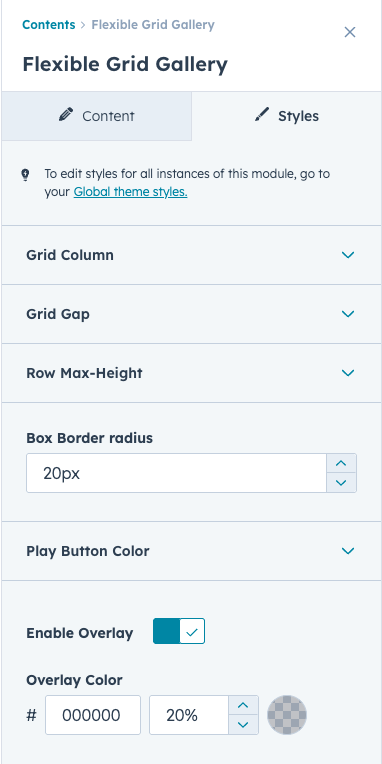
- Grid Columns: Number of columns (1-4)
- Grid Gap: Spacing between items in pixels
- Row Max Height: Maximum height for each grid item in pixels
Tablet Settings
- Grid Columns: Number of columns for tablet devices
- Grid Gap: Spacing between items on tablets
- Row Max Height: Maximum height for tablet view
Mobile Settings
- Grid Columns: Number of columns for mobile devices
- Grid Gap: Spacing between items on mobile
- Row Max Height: Maximum height for mobile view
Video Display Settings
Border Radius
- Video Border Radius: Round the corners of video containers (0-50px)
- Applies to both video containers and image items
Play Button Styling:
Only applies to YouTube and Vimeo videos with poster images
Background Color:
- Set the background color of the play button overlay
Icon Color:
- Set the color of the play icon
Hover Background Color:
- Background color when users hover over the play button
- Smooth transition effect included
Hover Icon Color:
- Icon color on hover state
- Enhances interactivity feedback
Overlay Settings
Enable Overlay:
- Toggle to show/hide overlay on video thumbnails
- Only applies to YouTube and Vimeo videos with poster images
Overlay Color:
- Set the color and opacity of the overlay
- Creates visual depth and improves play button visibility
We’re Not Here to Sell, We’re Here to Solve
Talk with strategic minds and developers, not just salespeople. Whether it’s your website, product, platform, or automation flow, let’s sketch the blueprint together. No fluff. Just meaningful collaboration. We reply same day.
