
Supported Browsers Overview


Version 12 and above |

Version 60 and above |

Version 79 and above |

Version 60 and above |

Version 1.34 and above |

Version 57 and above |
How to Use
Installation: Navigate to Marketing > File & Templates > Design Tools > @marketplace > Shunyavkash folder to find the Flexible Two Column Module. Install it.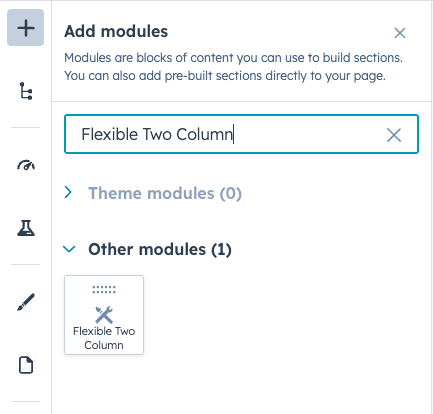
Integration: In the Marketing section, choose Website Menu > Website Pages and add the "Flexible Two Column" module to the page you want.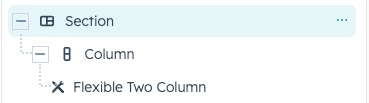
Content Customization
Main Image Field
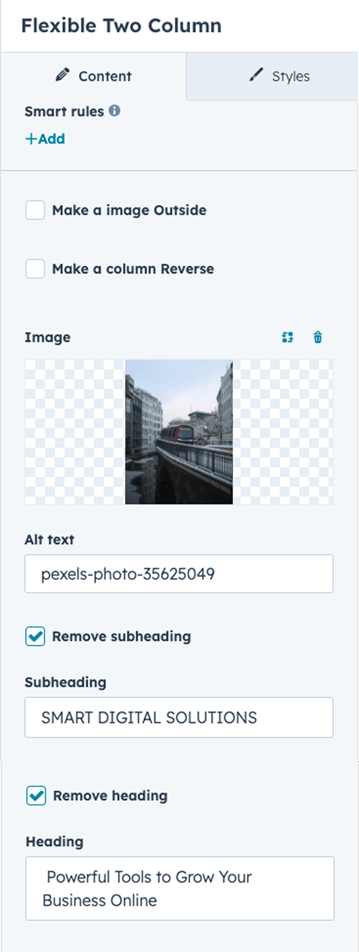
- Purpose: Display a hero or featured image in one column
Image Position
- Images can be displayed on the left or right column
- Use Make column reverse to swap column positions
- use Make image Outside to extend the image beyond the container width for a dramatic effect
Subheading
- Optional eyebrow text above the main heading
- Use for category labels, section identifiers, or supplementary information
- Can be toggled on/off using Remove subheading
Heading
- Main title for your content section
- Rendered as select in a h2 ,h3,h4 for SEO hierarchy
- Can be toggled on/off using Remove heading
Content
- Can include:
- Paragraphs
- Lists (ordered and unordered)
- Links
- Bold and italic text
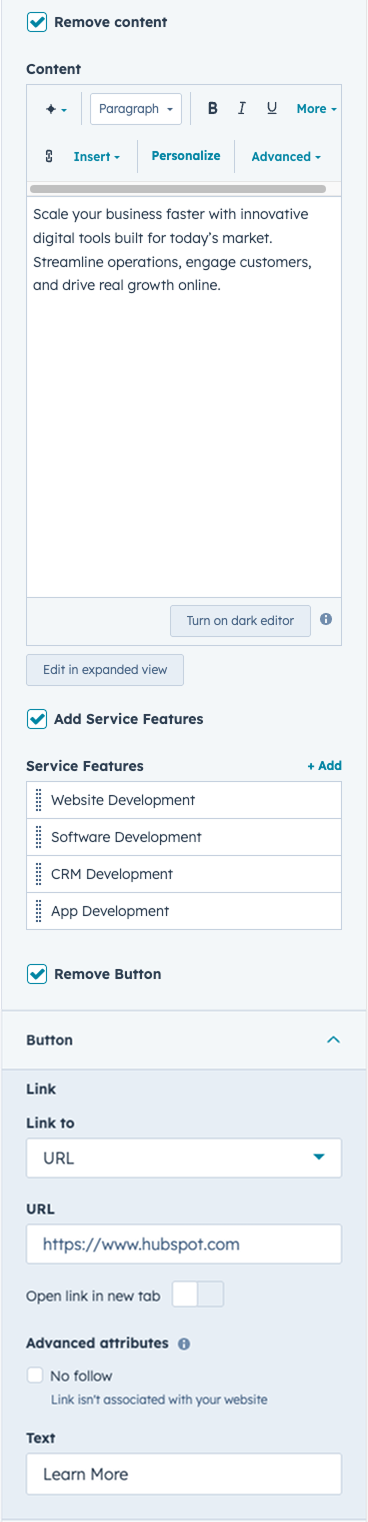
- Can be toggled on/off using Remove content
Button Configuration
- Text: Customize button label (e.g., "Learn More", "Get Started", "Contact Us")
- Link Types:
- Standard URL
- Email address (automatically adds
mailto:) - Phone number (automatically adds
tel:)
- Can be toggled on/off using Remove Button
Service Features Grid
Optional Service Features Section
Enable/Disable: Use Add Service Features to show/hide this section
Feature Items Each service feature can include:
Icon/Image Options
- Icon Type: Choose between:
- Font icons (from HubSpot icon library)
- Custom images
- Hover state images for interactive effects
Icon Image Settings
- Standard icon image
- Optional hover image for state changes
- Size: 60x60px (default, responsive on mobile to 44x44px)
- Supports lazy loading
Feature Text
- Short descriptive label for each feature
- Rendered as H5 heading
- Keep concise (recommended: 1-4 words)
Feature Links
- Optional linking for each feature
- Same link types as main CTA button
- Entire feature card becomes clickable when link is added
Style Customization
Container Settings
Maximum Width
- Control the maximum width of the content container
- Centers automatically when max-width is reached
Spacing
- Margin: Control outer spacing around the container
- Padding: Control inner spacing within the container
- Both support responsive values for desktop, tablet, and mobile
Layout Configuration
Column Gap
Customize the space between the image and content columns:
- Desktop Gap: Default spacing for large screens
- Tablet Gap: Adjusted spacing for medium screens (max-width: 1023.99px)
- Mobile Gap: Spacing when columns stack vertically (max-width: 575.99px)
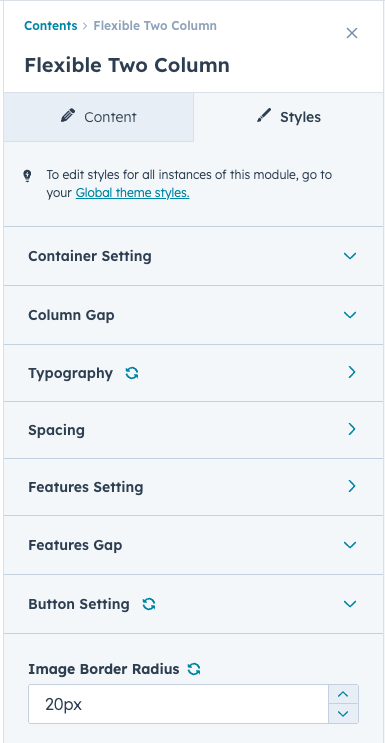
Image Styling
Border Radius
- Add rounded corners to the main image
Responsive Behavior
- Desktop/Tablet: 50% width each column
- Mobile (< 767.99px): Stacks vertically, full width
Typography Customization
Customize typography for each text element with responsive settings for Desktop, Tablet, and Mobile.
Subheading
- Font family, size, weight & color
Heading
- Font family, responsive size, weight & color
Content
- Font family, responsive size, weight & color
Button
- Responsive font size, weight & color
- Hover color option
Service Features Text
- Font family, responsive size, weight & color
- Hover color support
Spacing Customization
Elements with Spacing Controls:
- Subheading
- Heading
- Rich text content
- Button
- Service features wrapper
- Individual service feature item
Responsive Spacing
- Desktop spacing (default)
- Tablet spacing (max-width: 1023.99px)
- Mobile spacing (max-width: 575.99px)
Button Styling
Background & Colors
- Background Color: Default button background
- Hover Background Color: Background on mouse hover
- Text Color: Inherited from typography settings
- Hover Text Color: Text color on hover
- Border Color: Default border color
- Hover Border Color: Border color on hover
Border Settings
- Border Width: Set width in pixels
- Border Style: Solid, dashed, dotted, etc.
- Border Radius: Rounded corners (in pixels)
Button Spacing
- Padding within button
- All responsive across breakpoints
Service Features Styling
- Gap Between Features: Customize spacing in the grid
- Desktop gap
- Tablet gap
- Mobile gap
Individual Feature Cards
- Background Color: Default card background.
- Hover Background Color: Background on hover
- Border: Width, style, and color
- Border Radius: Rounded corners
- Hover Border Color: Border color change on hover
Icon Styling
- Icon Color: Default icon fill color (for font icons)
- Hover Icon Color: Icon color on hover
- Icon-Text Gap: Space between icon and feature name
- Desktop gap
- Tablet gap
- Mobile gap
Text Styling
- Text Color: Default feature name color
- Hover Text Color: Text color on hover
Hover Effects
- Image swap (if hover image provided)
- Entire card becomes interactive when linked
We’re Not Here to Sell, We’re Here to Solve
Talk with strategic minds and developers, not just salespeople. Whether it’s your website, product, platform, or automation flow, let’s sketch the blueprint together. No fluff. Just meaningful collaboration. We reply same day.
